Showing posts with label SQL Server 2012. Show all posts

Tuesday, 15 September 2015

Power Of POWER BI


Getting Started....
Microsoft Power BI is reach of features, rich graphics and supports numerous data sources.
To use MS Power BI features you have to signup here. https://powerbi.microsoft.com/

  1. User your organization Email Id for signing up. Microsoft will use your Organization Office 365 Licensing for this.
  2. It verifies your organization email id and Password.
  3. You will get free access but will be limited to few sources and samples only.
  4. To have full access you need to purchase Power BI Pro features.MS provide a 60 days trial pack for pro features :-)
  5. Once sign up it will take few seconds to setup a Power BI work environment for you.   
  6. Following which it will allow you to connect to you with multiple data source options within or outside your organizations


  1. Here I am creating a sample data source using Xlsx (Local File Source) as Source
  2. you will get following like environment


  1. It same as Excel Pivot with little bit different layout but more charts like MAPs.
  2. Following is a sample report-


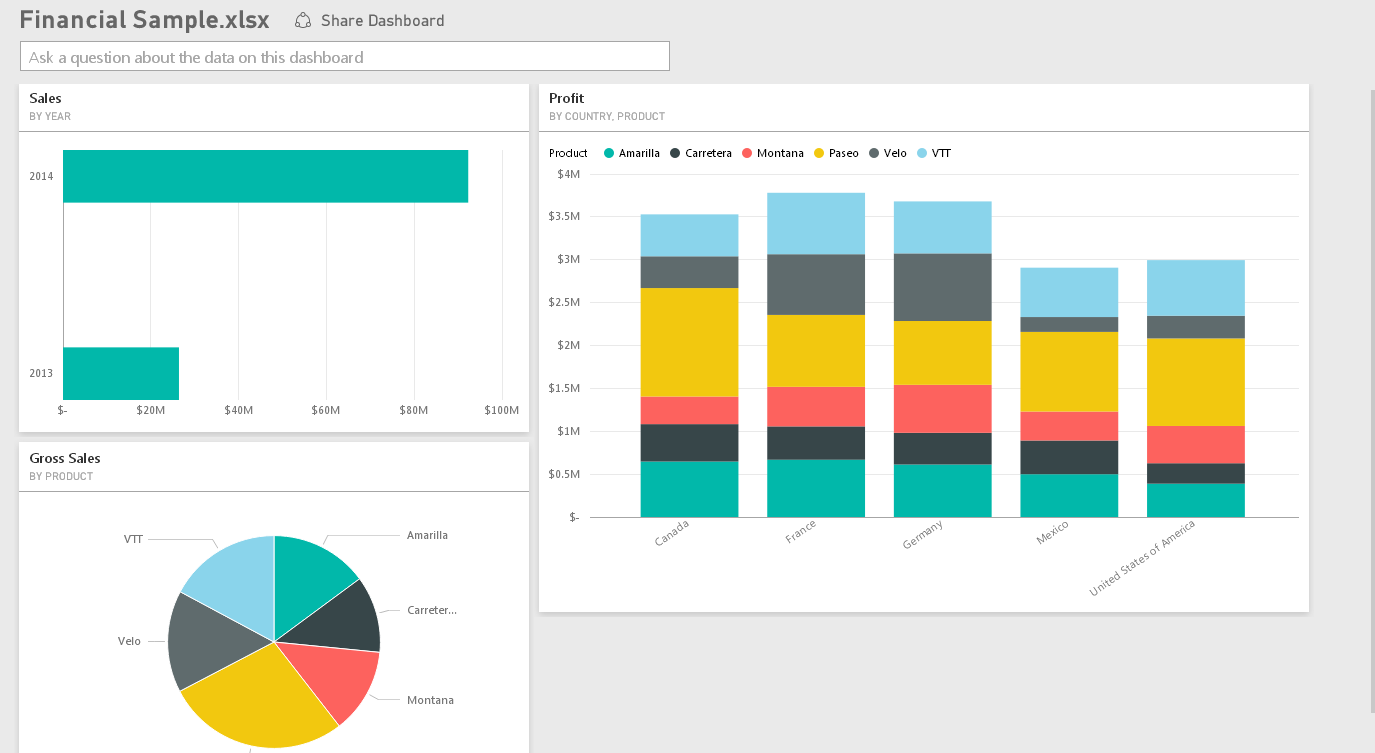
  1. Overall dashboards will look like


Well I have just started here. Please look for more on this in coming days…………………..


Wednesday, 15 July 2015

Uing Custom assembly in SSAS


Sometimes default function and features of SSAS are not sufficient to fulfil the requirement. Therefore, Analysis Services lets you add assemblies to an Analysis Services instance or database. Assemblies let you create external, user-defined functions using any common language runtime (CLR) language, such as Microsoft Visual Basic .NET or Microsoft Visual C#. You can also use Component Object Model (COM) Automation languages such as Microsoft Visual Basic or Microsoft Visual C++.


Following is an example where we have used an assembly to create a custom drillthrough.

Requirement
Requirement is to have huge text column (BLOB) to be displayed when doing a drillthrough in SSAS using excel as tool.

Problem statement
  1. By default column which included into drillthrough needs to be present in cube. If we don’t have columns in cube we can not see then in drill through.
  2. Having huge text column into the cube will increase the cube storage as well will degrade the performance of cube. Also it will increase cube processing time.
 If we keep the required drillthrough columns in cube, our cube performance will be impacted, if don’t keep it we wont be able to drilldown on it usnign default drillthrough functionality.

Solution
Using an assembly
We come up with a solution where we will not keep the required BLOB columns into the cube, but will use an assembly to query background SQL DB and send a result back into excel.
  
  • A dot net based assembly having function to which will call database stored procedure or T SQL. This function will take MDX syntax based parameter as input.  

  • To make a call to this assembly use action tab of cube designer and use following kind of syntax –

Call MyAssembly.MyClass.MyFunction(a, b, c)

  • This function can internally (within assembly) call multiple functions.
  • Function will have a connection string to SQL DB. 
  • In Action tab select the return type as dataset. This will allow you to display return result in a new excel sheet.
  • This assembly and its function can be used in multiple ways, instead of returning a result set it can also return a web page URL or SSRS report URL. 
I have used assembly created by "https://asstoredprocedures.codeplex.com/" and used it as basic template. i modified it for my purpose and use.


Deploy
This assembly can be deployed using SQL Server Management Studio.

SSMS -> Expand Assemblies folder -> Right click -> Click on New Assembly -> it opens Register Server Assembly window -> choose type and through File Name add your assembly

Security
Whenever we use custom assembly we also faces security challenges.
By default SSAS provide a security options as follows -

                  
Permission Setting
Description
Safe
Provides internal computation permission. This permission bucket does not assign permissions to access any of the protected resources in the .NET Framework. This is the default permission bucket for an assembly if none is specified with the PermissionSet property.
ExternalAccess
Provides the same access as the Safe setting, with the additional ability to access external system resources. This permission bucket does not offer security guarantees (although it is possible to secure this scenario), but it does give reliability guarantees.
Unsafe
Provides no restrictions. No security or reliability guarantees can be made for managed code running under this permission set. Any permission, even a custom permission included by the administrator, is granted to code running at this level of trust.

Conclusion 
Using custom assembly is very easy. It lets you customized your cube/MDX in multiple ways. 

References  

Wednesday, 13 May 2015

Connecting to TERADATA using SSIS


Connecting to Teradata using SSIS can be tough a task if you miss installing important prerequisite.

It is best to have some Teradata Expert with you to help you understand required prerequisite installations. I was luck to have friend who provided me all the perquisite installation file in a shot.

Following is a step by step guide
  1. Instllation of Teradata prerequisite

Following is list of Drive I have install ( in a sequence)

      1. Microsoft Dot net 3.5
      2. Shared ICU Libraries For Teradata 14.00.0.1
      3. Teradata GSS Client V 14.0.2.2
      4. Teradata Data connector V 14.00.0.10
      5. .NET Data Provider for Teradata V 14.00.0.1 (For .NET Driver of SSIS)
      6. ODBC Driver for Teradata V14.00.0.4  (For having ODBC connection)
      7. Teradata SQL Assistant V 14.01.0.2 ( A SQL browser like Todd, help you check connectivity with TERADATA)
      8. Teradata Administrator v14.00.0.2
      9. Teradata CLIv2 v14.00.0.4
      10. Teradata BTEQ v14.00.0.5
      11. Teradata ARC v14.00.0.4
      12. Teradata MultiLoad v14.00.0.8
      13. Teradata FastLoad v14.00.0.7
      14. Teradata FastExport v14.00.0.5
      15. Teradata TPump v14.00.0.6
      16. Java Runtime Environment
      17. Teradata Parallel Transporter Base v14.00.0.8
      18. Teradata Parallel Transporter Stream v14.00.0.8


Above all are very simple setup file and required no input from installer, just double click and couple of next button will get you through.
Once you installed all these drive I recommend having a restart of your machine/server if possible. 


  1. Creating a Data Source connection

·        Create a Shared Data source like following


·        You will get option to select a Tera Data Driver.
·        Select the “.Net Data Provide for TeraData”
·        Fill the details of Server, credentials and database name


·        After filling details do a test connection.

  1. Using connection in Source

·        Drag and drop “ADO .NET Source”


·        Double click on this to configure source component like below


·        Simply select data source you have created in above steps and after that you will get option to browse the table list, select the table you want to pull data from.


That’s it. Connect this source further in transformation or destination as per your requirement. 
You will be able to source data from TERADATA.

Apart from this there is another way of connecting is by using Attunity, which you can get it from following –

if you have followed all the above steps, you should not be facing any problem using this driver. 


Tuesday, 3 July 2012

Microsoft SQL Server 2012: changing course of BI


With the resale of SQL Server 2012, Microsoft is taking himself one step ahead in BI market.
In this resale we have seen significant improvement in Microsoft BI Stack including IS, AS, RS and Self Service BI.  
But here I am not going to talk about the improvement Microsoft is doing in his product.
Here I would like to explain how it can change the BI implementation thinking.

Earlier
Following is traditional BI cycle.


In a typical BI implementation see above Pic, We usually build a Enterprise BI solution and then this solution gets divided for different teams and then we emphasize on an individual need of BI.

Now Self-service implementation is growing and more and more customers are looking towards self-service implementation to have bigger percentage in their BI implementation policy.

Microsoft has included/modified their tool stack to make self-service more powerful and more effective. Now self-service BI tools can be a center point in the BI implementation and around that we can build rest of the module.

Now by SQL- 2012

Now tools like PowerPviot can be used to build a quick BI solution or to show case (as Proof of concept) what can be achieved.
A person in a team and enterprise can now use this tool and build a quick solution using PowerPviot.
This solution he can use it for individual use. Also he has option to share this with his team using SharePoint.

This can be also considered as first step and if solution satisfy the needs of larger audience than  it can be implemented at enterprise level and can go for full implementation cycle of BI use stander practice tools like IS, AS, RS and PPS. 
This way you have guarantee of the acceptance of your BI solution before you have implemented. (Remember this one of the challenges customer faces)

So now I feel whole stack can be turn around to give you different picture. See below.


 PS: I am sure people will have different opinion and it may differ than above one. It just my perspective with new SQL Server release.